

How to use the VCH Careers Portal
Follow these step-by-step instructions to submit your application to Vancouver Coastal Health.
On this page
Search for job postings
New postings go up on the external careers website everyday as they are available. We recommend that you review our job postings often for new opportunities of interest.
- All external job postings remain up until filled. If the job posting is still up on our website, please feel welcome to submit your application.
- For internal job postings (current VCH staff only), unless otherwise noted on the posting, internal job postings close at 8:00 AM Pacific Time on the listed Closing Date. If the closing date has passed but the posting is up on the internal job posting site, interested internal applicants are welcome to submit a late internal application.
You can browse job opportunities using keywords and filters.
- Search using keywords: Enter a keyword in the search bar, apply any filters you want, then click Search. The results will be narrowed based on your keywords and filters.
- Search using filters only: Leave the search field blank, select the filters you want to use (e.g., job category, job status, location), and click Search. This usually returns more results than a keyword search. Feel free to explore multiple job categories to broaden your options.
When signed into your VCH Careers Portal account, you can also view personalized job recommendations and postings. Simply click on the Dashboard link in the upper right corner of the page, then select View Job Recommendations or Search Current Job Opportunities.
Reading job postings
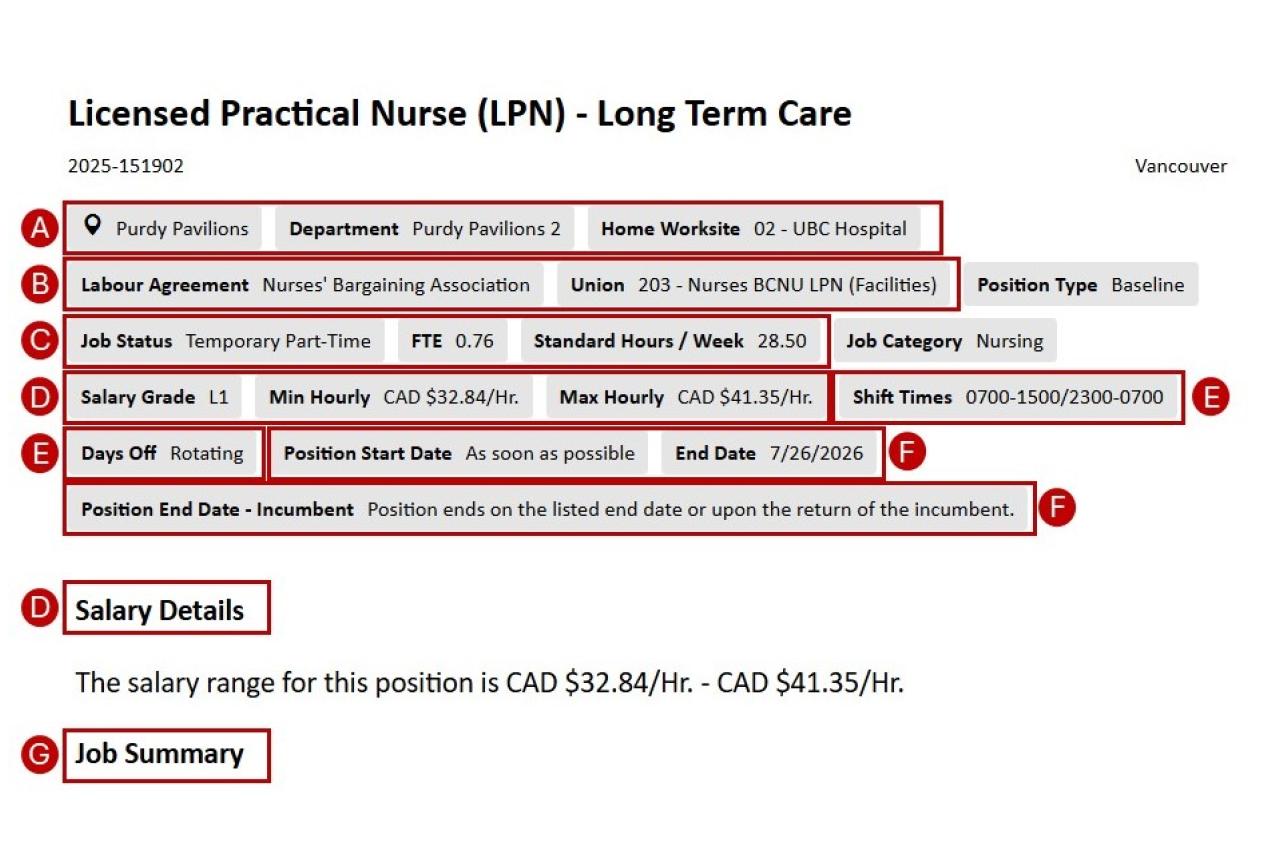
Each job posting displays the posting number, job title, job status, department, labour agreement, and location. Click the job title to view more details.
Position details: When reading a job posting page, it is helpful to understand what each part refers to. The job title, job posting number and city/region are at the top. Key position details are listed in the grey bubbles. Review each of the drop down sections below to ensure the position is of interest to you prior to applying.
-
A: Worksite/facility and department
The location of the position.
-
B: Labour agreement and union
The labour agreement and union of the position.
-
C: Job status and FTE
- Full-Time - A regular position with full-time hours. Typically, full time at VCH is 37.5-40 hours per week, depending on the collective agreement.
- Part-Time - A position with fewer hours than full-time. Part-time roles are a great way to gain experience at VCH.
- Casual (Auxiliary/On-Call) - Flexible, on-call positions that allow you to build experience and explore different areas across VCH.
- Temporary - These roles have a defined end date or may end when the current employee returns to their position. Temporary roles offer a great opportunity to gain experience at VCH.
- Regular - A permanent position with ongoing employment.
FTE stands for “Full Time Equivalent” and reflects information about the average number of hours worked per week. For full-time positions, this is usually 1.0 (reflecting full-time hours)
For part-time roles, the FTE shows the portion of full-time hours worked. For example, an FTE of 0.50 means working an average of 18.75 hours per week if full-time is 37.5 hours.
-
D: Salary grade/range and min/max hourly
The grade/range reflects the wage grid for the position under the collective agreement or labour group policy. The min and max hourly fields list the potential salary range. Placement is dependent on collective agreement guidelines for unionized roles.
-
E: Shift times and days off
These fields indicate the possible shift times for this role and typical days off. Shift times may reflect rotational shift schedules and are subject to operational requirements.
-
F: End date (and ‘Position End Date – Incumbent’)
For temporary roles, this reflects when the contract is expected to end. If filling in for a staff member, it may note that the position may end when the incumbent returns.
-
G: Body of job posting
In the body of the job posting, you will find the following sections:
Job summary: More information on the job’s typical scope of duties and responsibilities
Qualifications: What education, experience and training is required for the role.
Closing statement: Additional conditions of employment or details/requirements on the application process may be stated here.
Sign up for job alerts
New External Applicants
To receive job alerts, create an applicant profile on the VCH Careers website here.
Returning External Applicants
Visit the VCH Careers website and select ‘Log Back In’ to access your profile.
Current VCH Employees (Internal Applicants)
Please log in here using your VCH email address.
Once you’re logged in, you’ll see your name displayed at the top of the page.
- Click on ‘Dashboard’
- The Candidate Dashboard includes your profile, job recommendations, current job opportunities, and options to manage your email subscriptions based on your preferences.
- Click on “Manage Email Subscriptions” to select and receive alerts for a specific job category.
Submit your application
Note: These instructions are for those applying for an external opportunity. If you are a current VCH staff member or a physician please follow instructions outlined here.
All job applications must be submitted through the VCH Careers portal online. We do not accept in-person paper applications or applications sent by email. If you need assistance submitting your application, please contact recruitment.inquiries@vch.ca
-
Start application
Find a job posting of interest by using the steps above in the Job Search section and click Apply now.
-
Create/update your profile
- Returning users: If you've previously created a profile, you’ll be prompted to log in. Make sure your resume and any other documents (e.g. cover letter, proof of qualifications, work-related documents) are up to date.
- New users: If this is your first time applying, you'll be asked to create a profile and answer application-related questions. You’ll be asked to upload your resume, and you may also include a cover letter and other relevant documents (e.g. certifications, transcripts).
-
Complete job-specific questions
Next, you’ll be asked to answer questions related to your application. Complete all required fields and click Submit to finish, or choose Finish Later if you need more time. You can return to complete your application by signing into your account.
-
Submit application
After clicking Submit, you’ll see an on-screen confirmation and receive a confirmation email.
-
Review submitted applications
To review the job postings you’ve applied to, click Dashboard in the top right corner of your account. From there, you can also withdraw your application if needed.

Upload your resume and/or cover letter
You can have one primary resume and cover letter on your VCH profile. We recommend uploading a generic version of each. For tips, visit the “Preparing Your Resume” page.
To include multiple cover letters or supporting documents, use the “Additional Documents” section and label files clearly (e.g., “Cover Letter for Clerical Positions”).
When applying, note in the screening question that your cover letter is included in the additional documents.
Update your profile
To update your profile - including contact information, resume, cover letters, or to upload additional documents - please follow these steps:
- Log into your VCH Careers Portal profile (external candidates click here, internal candidates click here). Returning candidates will need to enter their login and password.
-
Once logged in, click the Update Profile button to create or edit your profile. You can:
- Replace your resume (maximum file size: 5 MB). Please note the size limitation.
- Replace your primary cover letter. Any changes to your resume or cover letter will automatically overwrite the existing files.
- Upload or delete additional documents.
- Change your login information, including your password.
- Enter or update additional information, contact details, and complete all required candidate questions. Please ensure every question is answered before submitting.
- Update your most recent job title and employer information.
- Update your legal entitlement to work in Canada (e.g., changes in work permit status).
- When you have finished making updates, click the blue Update Profile button at the bottom of the page.
- Once your profile is successfully updated, you will see a confirmation notification on the next page.
Review your application(s)
To view the jobs you’ve applied for, sign in to your VCH Careers online profile. In your Dashboard, under the Submitted Applications section, you’ll find a list of all your applications. From here, you can also complete any unfinished applications or withdraw from postings you’re no longer interested in.
Only shortlisted applicants will be contacted by our team. Timelines for shortlisting may vary depending on the position. In the meantime, we encourage you to regularly check the VCH Careers site for new job postings and apply to opportunities that match your qualifications.
Withdraw an application
To withdraw a submitted application, sign in to your VCH Careers online profile. In your Dashboard, under the Submitted Applications section, you'll see a list of jobs you’ve applied for. From there, you can withdraw from any postings you are no longer interested in.
Pause an application and complete later
While filling out your application, you can click Finish Later to save your progress without submitting. When you’re ready to continue, sign in to your VCH Careers online profile. In your Dashboard, under the Submitted Applications section, you’ll see a list of jobs you’ve applied for.
In the Actions column, click the Continue Application button next to any job with an incomplete application to resume and complete it.

Next steps
We encourage you to regularly visit our VCH Careers website to explore current vacancies and apply to positions that match your skills and experience.
Due to the high volume of applications, only candidates whose qualifications closely align with the position requirements will be contacted. If a job posting is still visible on our website, the position is still under review.
Get ready for your interview with our Preparing for an Interview guide.
Reset your password
-
For External Applicants
If you are not currently employed by Vancouver Coastal Health or are a Physician with VCH and have previously created a profile, please log in here.
If you forget your login name or password:
- Click on Login
- Select Forgot your password? or Forgot Username
-
For Current VCH Employees (Internal Applicants)
Please log in here using your VCH email address.
If you forget your password:
- Enter your VCH email address
- Click Continue
- Select Reset your password
